You need only a PC, tablet or smartphone set to an IP address belonging to the
same network of any LAN port of the ABILIS router.
The factory default IP configuration is:
LAN1: IP address statically assigned to 192.168.1.1 (MASK: 255.255.255.0)
LAN2: automatically taken from an existing external DHCP server, if available.
PLEASE NOTE: ABILIS uses the video or keyboard port only for maintenance purposes.
Connecting a monitor and keyboard before powering the ABILIS up, a small window becomes
visible in the bottom-left part of the screen, which can be explored using the 4 arrows of
the keyboard.
The current IP addresses are visible in the section "IP PORTS".
The User Interface of the ABILIS is typically a web portal corresponding to the web-server
resident in the same ABILIS.
You can use the web browser of your preference (Chrome, Firefox, Edge, Safari).
An IP address
is a number identifying a device on your network, like 192.168.1.1.
Step by Step
Enter the IP address of any ABILIS IP port in the browser's address bar — for instance,
http://192.168.1.1 — and press Enter.
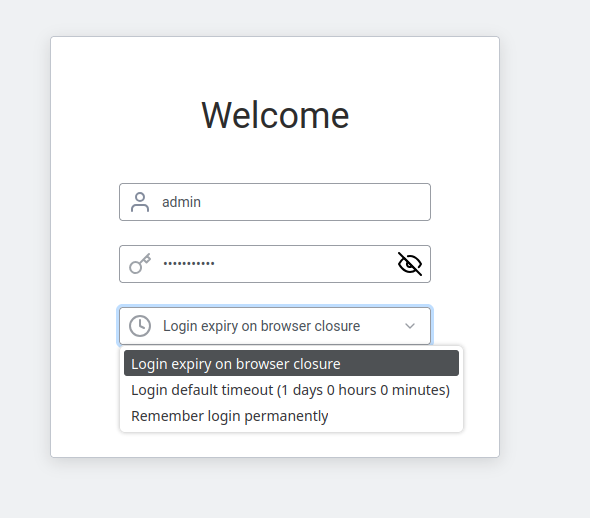
The Welcome login page appears:
The Abilis login page — enter username, password and choose session duration.
Fill in:
Username — your personal login name (e.g. admin).
Password — click the eye icon (👁) to reveal what you're typing if needed.
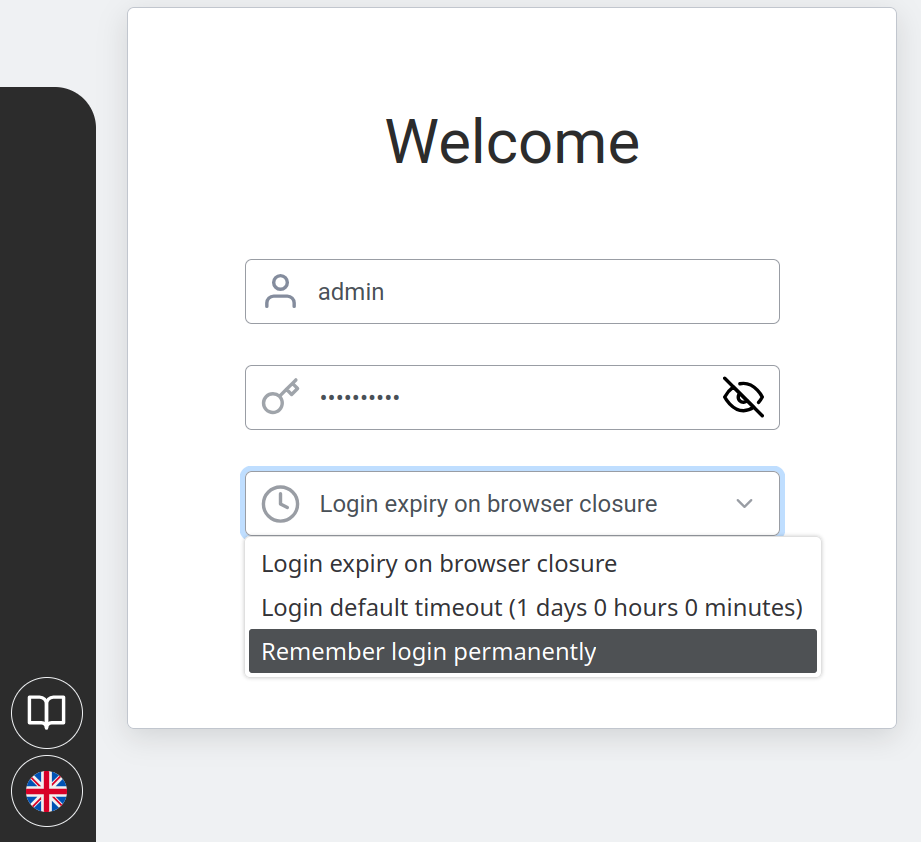
Session duration dropdown — choose how long you stay logged in:
— Login expiry on browser closure — you are logged out when you close the browser tab (recommended for shared computers)
— Login default timeout (1 days 0 hours 0 minutes) — stays logged in for 24 hours
— Remember login permanently — stays logged in until you manually log out (only use on your personal device)
Session duration dropdown — choose how long your login session lasts.
Click Sign in.
First-time login uses a default password — you must change it immediately after signing in.
Username:super
Password:PWDS followed by the unit's serial number
(e.g. serial 1919010 → password PWDS1919010).
The serial number is printed on the label affixed to the physical Abilis case
— usually on the bottom or rear panel. That means anyone who has handled the unit, walked
past the rack or seen a photo of it (installer, courier, visitor, previous owner) can derive
this password. Treat the default password as publicly known.
The moment you reach the home page, go to Change Your Password below
and set your own strong password. Do not postpone this step, even on a brand-new unit on a
LAN you trust.
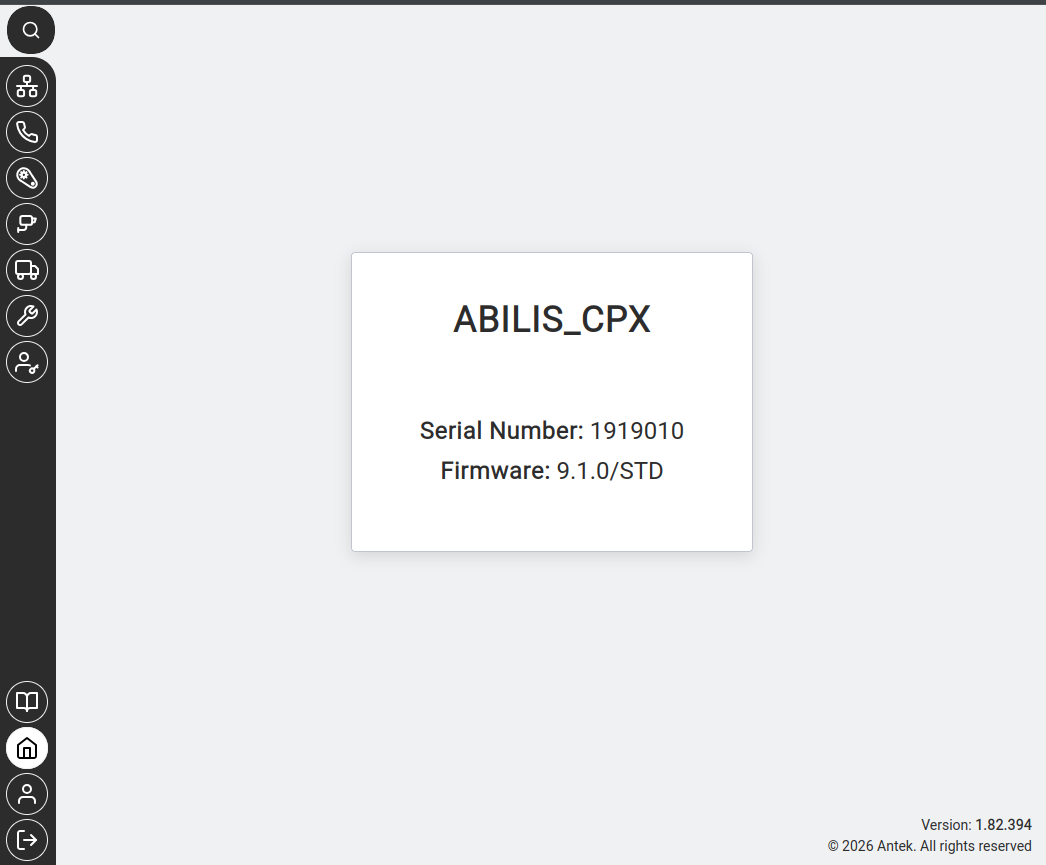
You see the home page — a card showing the unit name, serial number and firmware version. The sidebar with section icons appears on the left.
The Abilis home page — shows ABILIS_CPX, serial number, firmware version and GUI version in the bottom-right corner.
Click "Advanced" → "Proceed". Normal for internal devices.
"Connection refused"
Different port or service not running
Try port 80 (http://192.168.1.1:80) or port 443 (https://192.168.1.1). If neither works, the HTTP service may need restarting — power-cycle the Abilis unit.
If none of the above helps, try a different browser or device to rule out local issues.
You can also check Networking > Info from another computer on the same LAN to verify the Abilis is running.
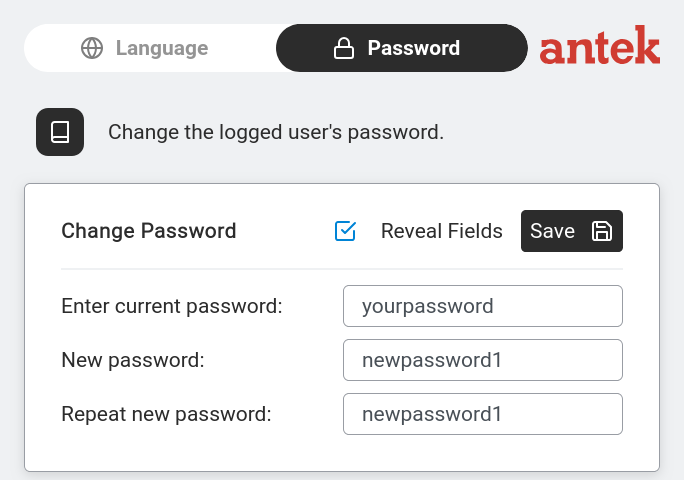
Change Your Password
Click the User Settings icon at the bottom of the sidebar,
then click the Password tab.
The Change Password page — enter current password, new password and confirm.
The page reads: "Change the logged user's password."
Three fields:
Enter current password — your existing password.
New password — the password you want to change to.
Repeat new password — type the new password again to confirm.
Tick Reveal Fields to see what you're typing (useful to avoid typos). Click Save.
Change the default password now — before configuring anything else.
The super default of PWDS + serial number is derivable by anyone
who has seen the label on the case, so the unit is effectively unprotected until you replace
it. Pick a strong password (mix of letters, numbers and symbols; at least 12 characters)
and store it in a password manager — there is no easy recovery if you forget it.
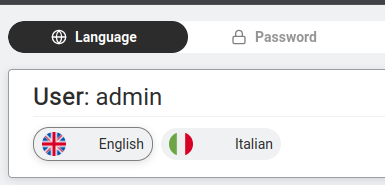
Change Language
The Language page — click English or Italian to switch the interface language.
Click User Settings. On the
Language tab (shown by default), you see User: admin
(or your username) and two buttons:
🇬🇧 English
🇮🇹 Italian
Click one to switch. The interface reloads instantly.
Anteklab Technical Support
Email: tem@antek.it
Tel: +39 0376 16262,27
 User Settings icon at the bottom of the sidebar,
then click the
User Settings icon at the bottom of the sidebar,
then click the