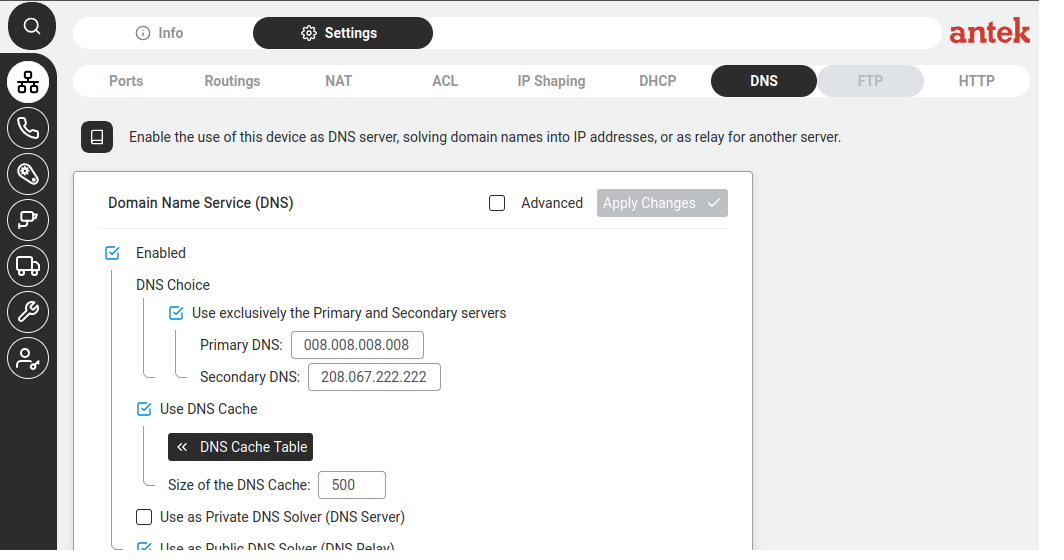
Navigate to Administration > DNS filtering. This feature lets you control which websites users on your network can access, by blocking or allowing specific domain names at the DNS level.
The DNS Blacklist sub-tab shows domains that are blocked.
Underneath, the Abilis is running the DNS Blacklist feature on its DNS resource (RELAY-BLACKLIST=YES;
per v9.0 reference manual ch37.5). The Resolved Domains table caches up to 2000
recently-looked-up names — both clean ones and ones that got blocked.
At the top: "List of requestors subject to blacklist filtering, but not listed here:"
with a field showing the exclude list name (e.g. DNSLogExclude). A requestor
in this context is a DNS client IP making lookups against the Abilis.
Below that:
To block a new website, click Ban new domain + (top right). A dialog appears:
| Field | Details |
|---|---|
| Domain name | Enter the domain to block (e.g. facebook.com). Validation rules:
— Allowed characters: lowercase/uppercase letters, numbers, dots, hyphens [a-z, A-Z, 0-9, ., -] — Each label (part between dots) can be 1–63 characters (e.g. antek.it)
— Labels cannot start or end with a hyphen (e.g. -label-.com is invalid)
— Level domain cannot be all-numeric (e.g. myDomain.123 is invalid) |
Click Submit to add or Close to cancel.
The right panel shows Banned domain with the list of currently banned domains. Entries can be removed by clicking the × next to them.
The DNS Whitelist sub-tab shows domains that are always allowed, even if they match a blacklist pattern. This is useful for exceptions — for example, blocking all social media but allowing LinkedIn for the sales team.
Fields at the top:
DNSLogExcludeDNSWhiteClientsBelow:
DNSLogExclude, DNSWhiteClients and
DNSBlackBypass — are managed in Tools > Lists.
Each one holds IP addresses of DNS clients (the "requestors"). They map directly to the
DNS resource parameters RELAY-LOG-EXCLUDE, RELAY-WHITELIST-CLIENTS
and RELAY-BLACKLIST-BYPASS in v9.0 ch37.5.