 Automotive Automotive
The Automotive section turns the Abilis into a fleet management hub — giving you real-time visibility of where your vehicles are, where they've been, how they're being driven and whether anything needs attention.
If your business operates vehicles — delivery vans, service trucks, company cars, construction equipment — this module lets you track them from the same interface you already use for networking and telephony. No separate GPS platform, no third-party subscription, no data leaving your premises.
What you can do:
| Capability | Example |
|---|---|
| Live tracking | See where every vehicle is right now — position, speed, direction, engine status. |
| Trip history | Review where a vehicle was on a specific date — routes driven, stops made, kilometres covered. Useful for mileage reports, customer billing or investigating an incident. |
| Automated alerts | Get notified when a vehicle exceeds a speed limit, enters or leaves a defined area (geofence) or triggers an engine warning. Alerts go through the same Alert Manager used for network and automation events — SMS, email or phone call. |
| Driver behaviour | Track harsh braking, rapid acceleration and speeding events — useful for fleet safety programs or insurance reporting. |
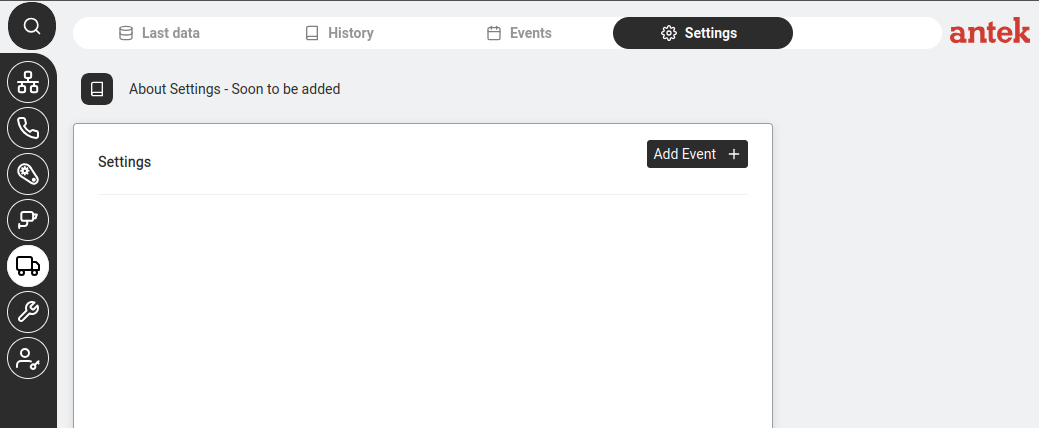
| Tab | What It Shows | Use It When |
|---|---|---|
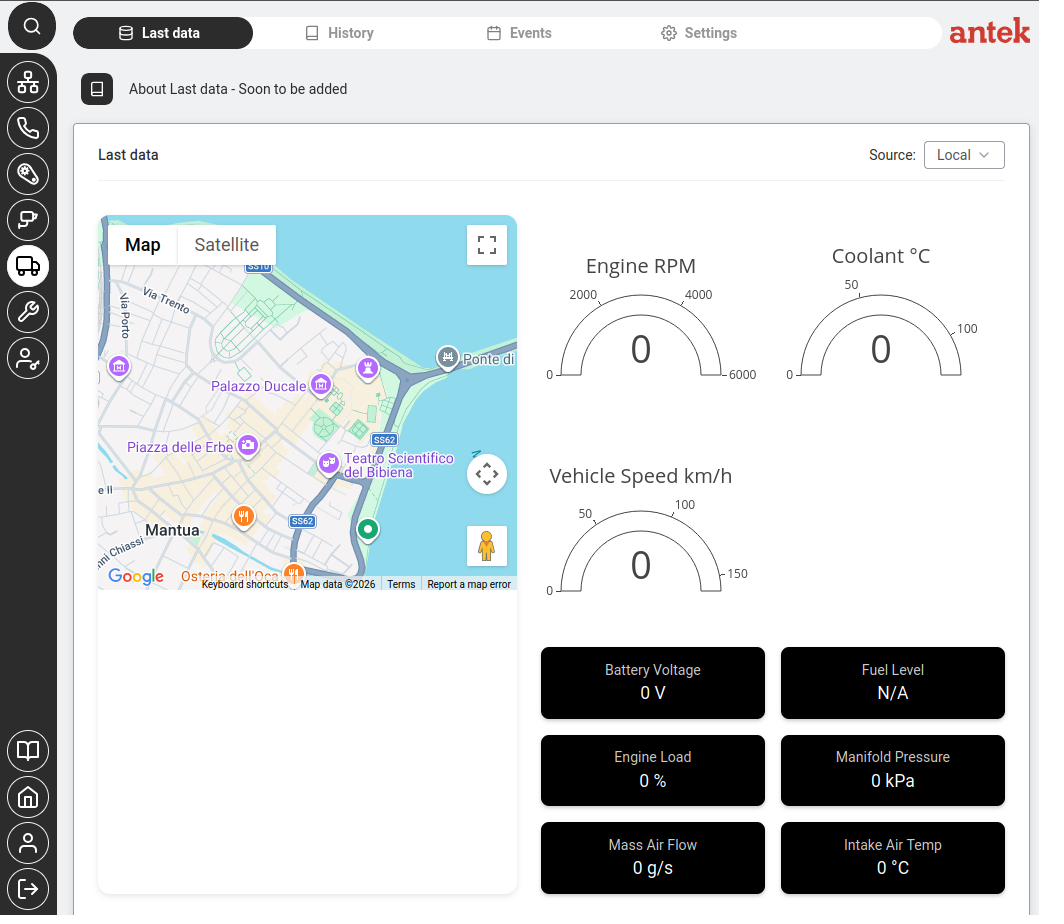
| Last data | The most recent data received from connected vehicles — location, speed, status, fuel level, etc. | You want a quick snapshot of where all vehicles are right now. |
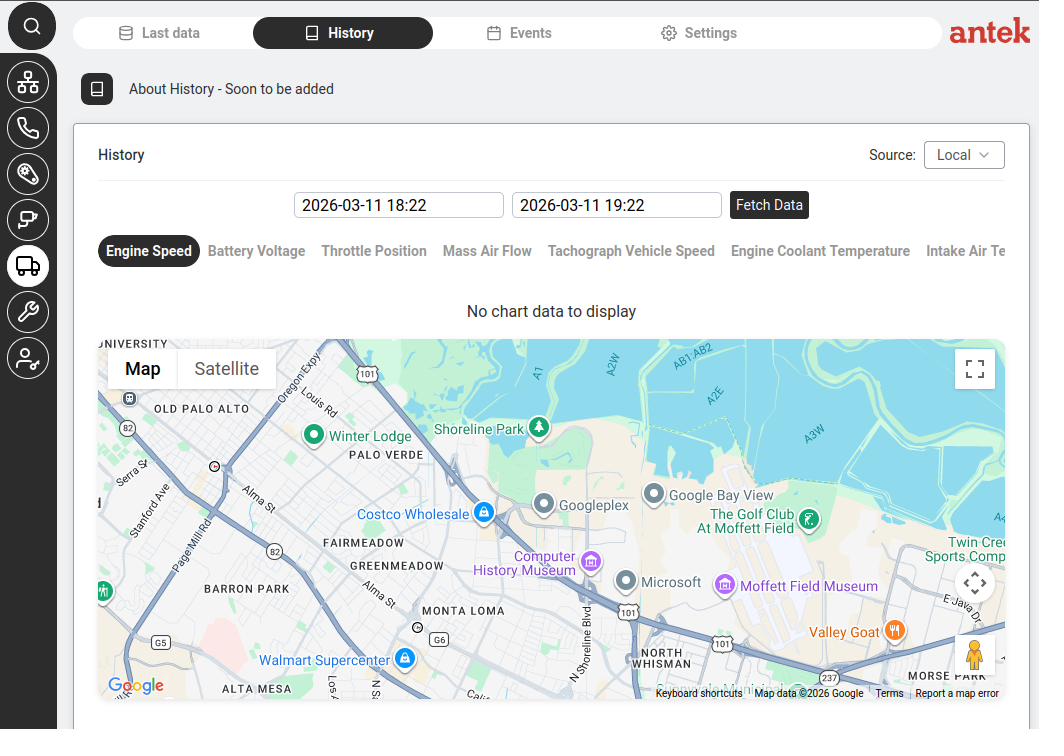
| History | Historical trip data — routes driven, stops made, distances covered, over any time period. | You need to review where a vehicle has been (mileage reports, route verification). |
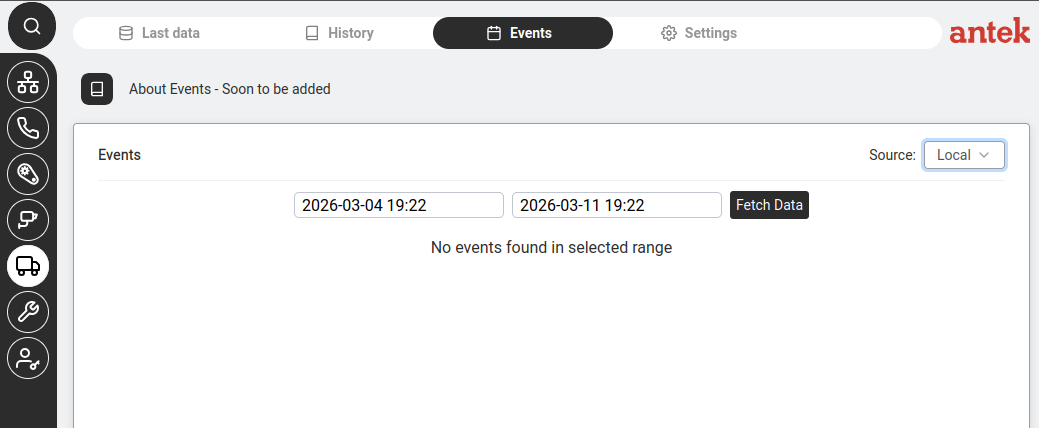
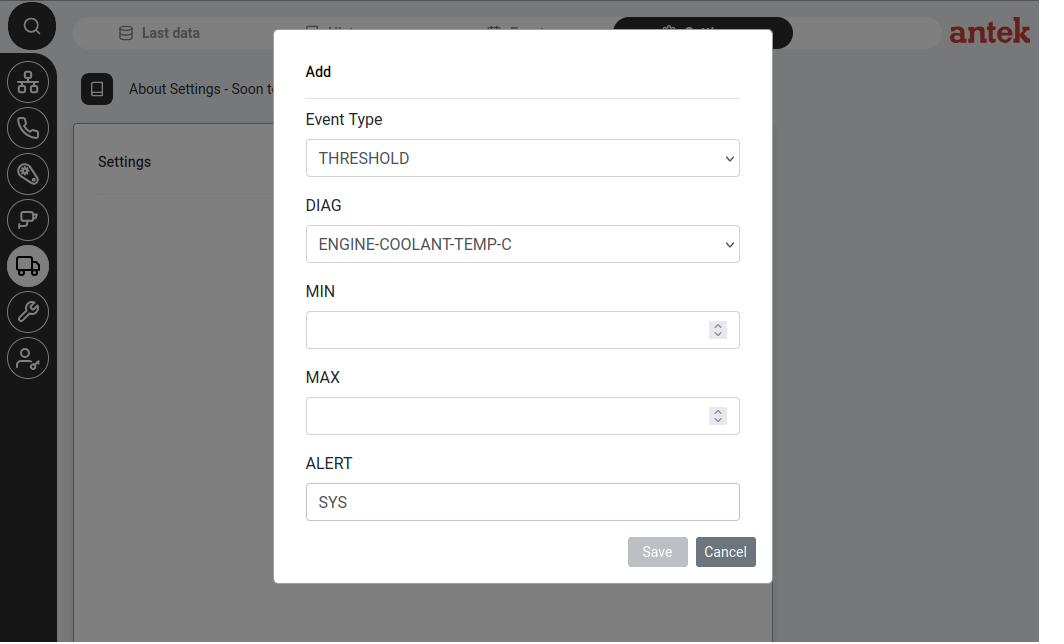
| Events | Alerts and events from vehicles — speeding, harsh braking, geofence entries/exits, engine warnings. Click Add Event + to create new event triggers (e.g. alert when a vehicle exceeds 120 km/h). | You need to investigate an incident, review driver behaviour or add a new alert trigger. |
| Settings | FMS and tracking-hardware configuration — reporting interval, per-vehicle parameters, data-logging behaviour. | You want to change how often the Abilis polls the vehicles or what data is retained. |