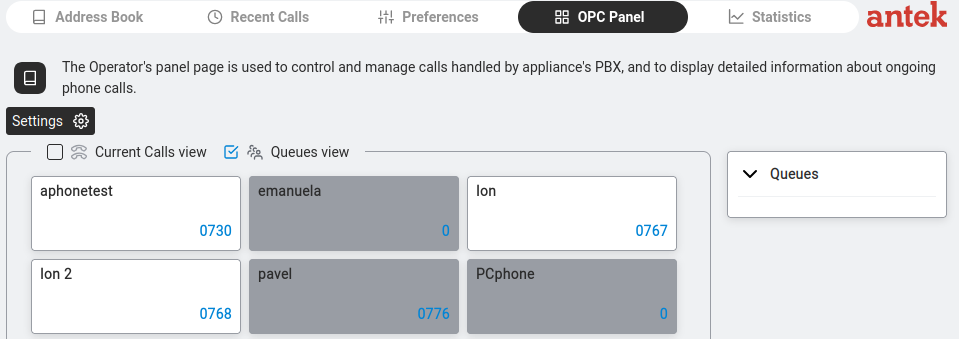
The Operator's panel is the digital switchboard for someone whose job is to handle calls — a receptionist, a help-desk agent, a switchboard operator. It puts every extension on one screen with live state and lets you initiate, transfer and monitor calls without picking up a handset.
Navigate to Phone > OPC Panel.
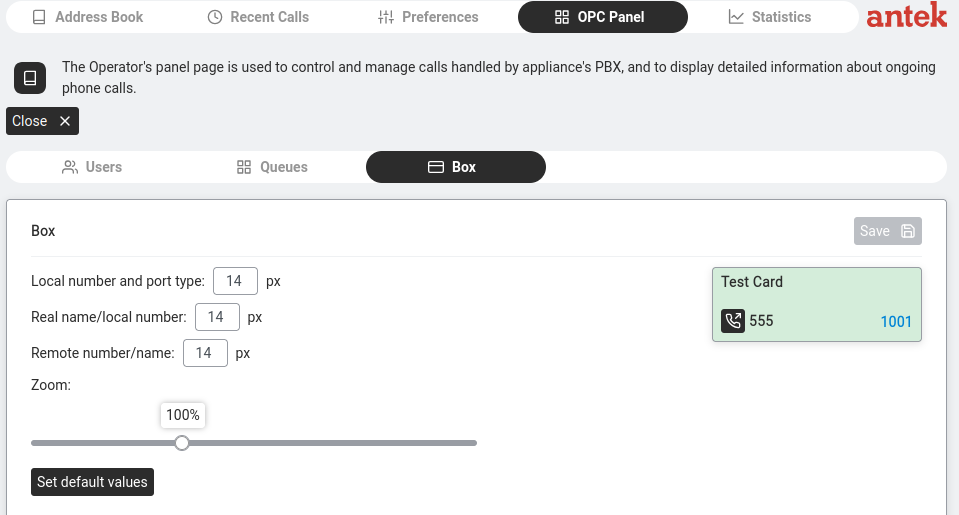
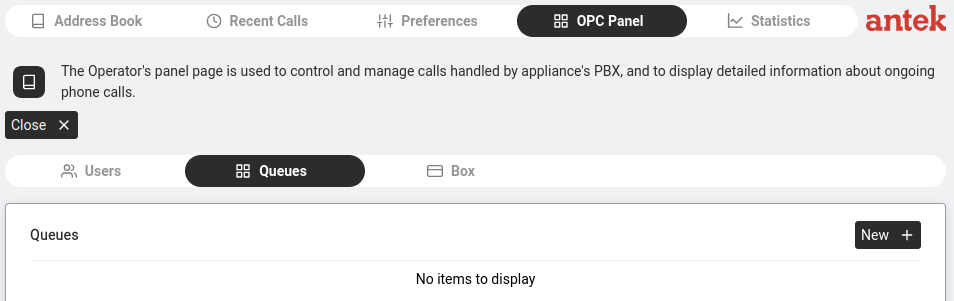
The OPC Panel has three sub-tabs:
| Sub-Tab | What It Shows |
|---|---|
| Users | All registered phone users as visual cards. Each card shows the user's name, extension number and current state (idle, ringing, in-call). Click a card to initiate a new call to that extension. Drag an active call onto a card to transfer it to that extension — the v9.0 manual describes this as "click with the left mouse button on the OPC user box and keep it pressed while dragging it to the target user's box". The card's colour changes based on state: green/light for idle, different colours for ringing or busy. |
| Box | Customise the visual appearance of the extension cards. The fields below control which information appears on each card and how big it is:
— Local number / Local name — the called number for incoming calls (the number on your side); font size in pixels (default: 14 px). — Real name — shown instead of the Local number in the main element when enabled; font size (default: 14 px). — Remote number / Remote name — the other party's number/name (the name comes from the Address Book if the number matches); font size (default: 14 px). — Zoom — a slider that scales the card overall (default: 100%). — Set default values — resets all fields above to their factory defaults. A Test Card preview on the right shows how the cards will look with current settings. |
| Queues | Call queues — when multiple callers are waiting for an agent. Shows the queue name, number of waiting callers and available agents. Use this view to monitor queue load and prioritise waiting calls. |
A Close button in the top right returns to the main phone view.
If you are a receptionist or switchboard operator, the Users tab is your main working view. Keep it open during the day. When a call comes in, you can see at a glance who is free. To transfer the active call, drag it onto the target user's card — the call moves to them. Per the v9.0 manual: "the operator can transfer the call without taking it" (the transfer can be done while the call is still in the alerting state, before you've even picked it up). To start a new call instead, just click a card.