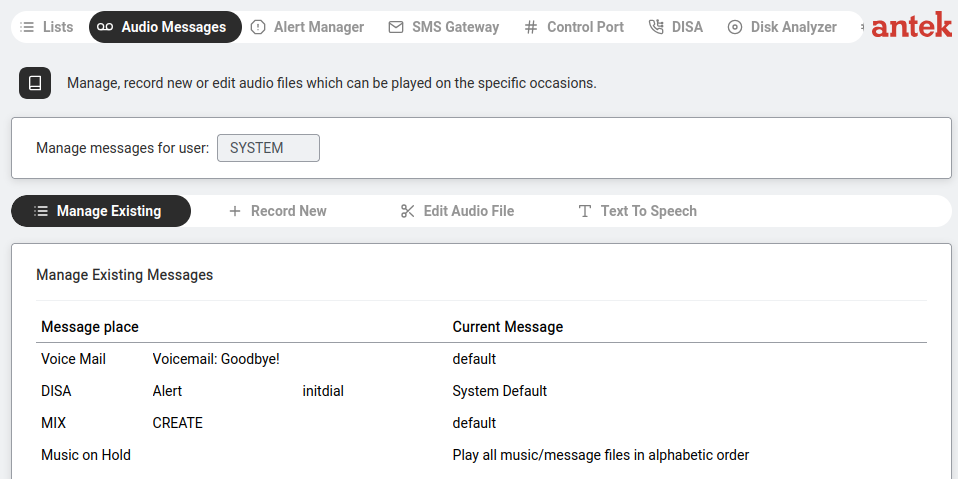
"Here you can control all the system's audio messages. You can preview, record, edit and upload audio messages."
Navigate to Tools > Audio Messages. A dropdown at the top ("Manage messages for user:") selects whose messages to manage (e.g. SYSTEM for shared messages or a specific user for personal voicemail greetings).
View and manage audio messages already stored on the Abilis. Messages are organised by location:
| Location | What It's For |
|---|---|
| VoiceMail | Messages callers hear when reaching voicemail. You can set separate Welcome (OGM in the underlying CLI) and Goodbye (END) messages. |
| DISA | Audio prompts for the auto-attendant (IVR). Each DISA service can have its own message. |
| MIX | Audio messages for MIX services (conference rooms, announcement mixes). Each service can have its own message. |
| Music on hold | What callers hear while waiting on hold. |
To assign a message: select the location, choose Welcome or Goodbye, click the preview button to listen, then select the audio file. For VoiceMail, MIX and Music on hold, you can also upload a new audio file directly (max 60 seconds, .wav or .mp3 format).
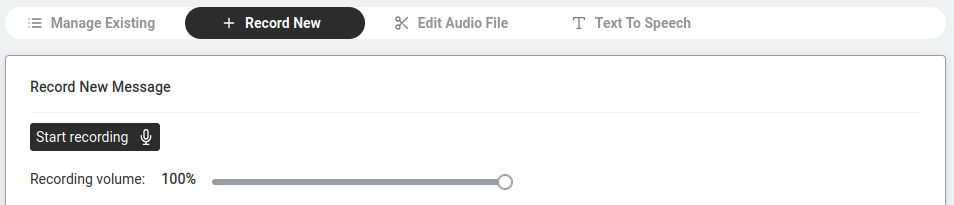
Record a message directly from your browser using your microphone.
 or ⓘ) to the left of the URL and enable microphone access.
(Reminder: this only works over HTTPS — see the prerequisite at the top of the page.)
or ⓘ) to the left of the URL and enable microphone access.
(Reminder: this only works over HTTPS — see the prerequisite at the top of the page.)

Opens an in-browser editor for the audio file of the selected user (or SYSTEM). The waveform shows the audio; drag across it to select a region.
Load and save (top right):
| Action | What it does |
|---|---|
| Upload audio | Load an .mp3 or .wav file from your computer into the editor. |
| Load from CF | Load an audio file already stored on the unit. |
| Extend audio | Pad the end of the track with silence (use to bring a short clip up to a minimum length). |
| Save | Commit your edits to the file. |
Toolbar (above the waveform):
| Button | What it does |
|---|---|
| Play / Pause | Play or pause the whole track. |
| Play selection | Play only the highlighted region. |
| Cut selection | Remove the highlighted region. |
| Decrease / Amplify | Lower or raise the volume of the selection. |
| Undo | Step back through recent edits. |
Trim to meet the 60-second limit on stored messages, then click Save.

Type text (up to 800 characters), choose English or Italian, click Play to preview,
then Download audio to save. Enter a filename (e.g. DISAmsg) and Save.