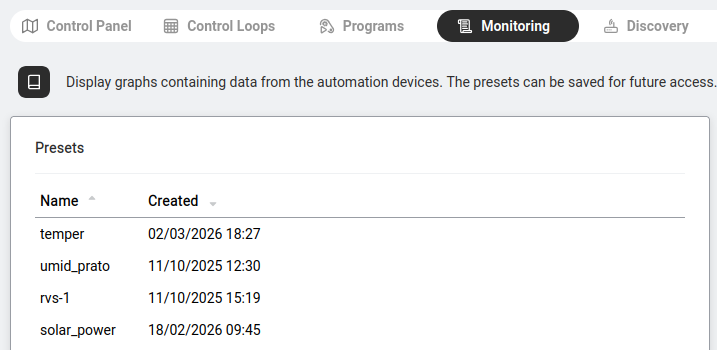
This page combines three related views of the same automation-device list: Monitoring (live values from connected devices), Discovery (newly-detected devices not yet assigned) and Configuration (known devices currently offline). The Automation Overview lists them as three sub-tabs; they all live on this one page.
Navigate to Automation > Monitoring. This tab shows real-time data from all automation devices: sensor readings (temperature, humidity, light levels), actuator states (on/off, open/closed) and event notifications (motion detected, door opened).
The monitoring view updates continuously, so you can watch changes as they happen. This is invaluable for troubleshooting: "the light was supposed to turn on at 6 PM — did the sensor trigger?" Check the monitoring log to see exactly when each event occurred.
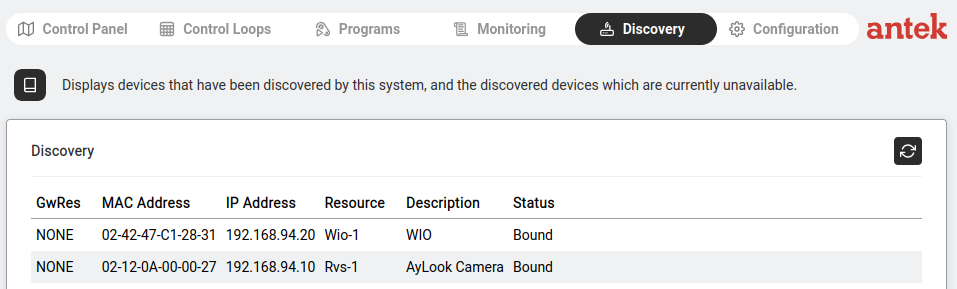
Navigate to Automation > Discovery. This tab scans your network for smart devices that the Abilis can control. Compatible device types include RIO (Remote Input/Output modules), RVS, WIO (Wireless I/O) and Sonoff smart switches.
The page shows two groups:
| Group | What It Contains |
|---|---|
| Free devices | Devices found on the network that are not assigned to any Abilis unit. These are available for you to register. |
| Bound devices | Devices already registered with this or another Abilis unit. |
Each device entry shows:
Ip-1) the device is bound to. Same Resource concept as on Networking → Ports, not the device itself.To register a free device:
The device moves from Free to Bound and starts appearing in the Monitoring view.
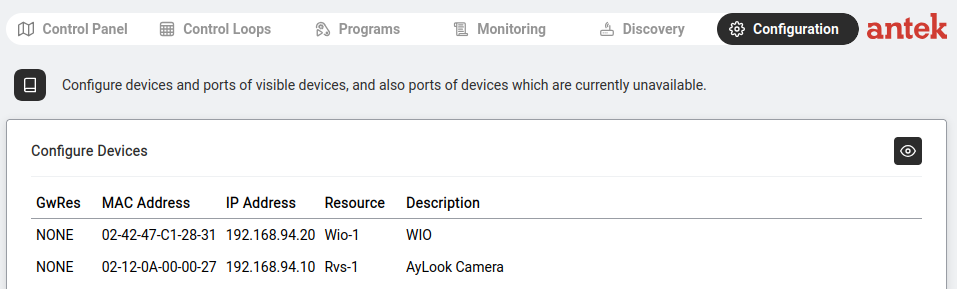
Navigate to Automation > Configuration. This tab shows devices that are registered but not currently connected — they may be powered off, disconnected from the network or temporarily out of range.
This is useful for checking which devices should be working but aren't. If a device appears here as "offline," check the physical device first (power supply, network cable, Wi-Fi signal).
Tick "Show devices bound to other Abilis servers" to see devices that are shared across multiple Abilis units in a multi-site setup.