This is where you configure everything network-related on the Abilis: IP addresses, internet connections, the firewall, DHCP, DNS and more. Most of these settings are configured once during installation and rarely revisited.
Click Networking > Settings. A row of sub-tabs appears: Ports, Routings, NAT, ACL, IP Shaping, DHCP, DNS, FTP, HTTP.
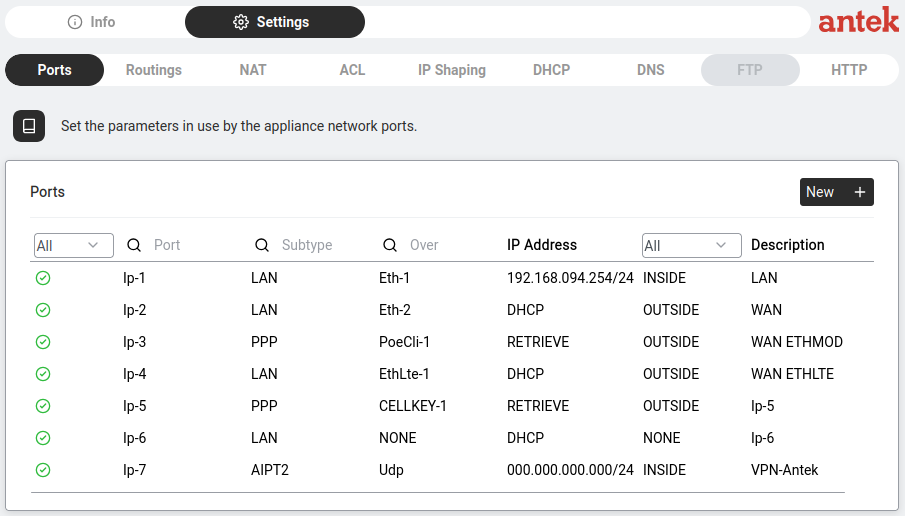
Lists every network connection the Abilis has — both the physical sockets you plug a cable into (Ethernet, PoE) and the software connections built on top of them (PPP/PPPoE dial-ups, LTE modems, virtual links). Each row is one connection that carries IP traffic and the table records, for each one, its address, whether it faces your local network (INSIDE) or the internet (OUTSIDE) and the physical interface it runs over.
Each port represents a network interface on the Abilis. The table columns:
| Column | Example | What It Means |
|---|---|---|
| Status |  | Green = active, red = inactive. |
| Port | Ip-1 | Internal port identifier. |
| Subtype | LAN / PPP | LAN = local network, PPP = point-to-point (modem/WAN). |
| Over | Eth-1, EthLte-1, PoeCli-1, CELLKEY-1 | Which underlying physical interface this logical port uses — an Ethernet socket, an LTE modem, a PoE port or a USB cellular dongle. |
| IP Address | 192.168.001.001/24, DHCP, RETRIEVE | How the port gets its address: a fixed IP you typed in, DHCP (the port asks a DHCP server) or RETRIEVE (the address is negotiated with the WAN provider during a PPP/PPPoE login). |
| Direction | INSIDE / OUTSIDE | INSIDE = your local network. OUTSIDE = the internet/WAN side. |
| Description | LAN, WAN DHCP, WAN ETHMOD, WAN ETHLTE | Human-readable label. |
192.168.001.001
means 192.168.1.1, 127.000.000.001 means 127.0.0.1
and 000.000.000.000 is the wildcard address (any host / unspecified gateway).
This is an Abilis display convention only; the values are ordinary IPv4 addresses. When
you type a new address into a field, you can enter it either way — the form accepts
192.168.1.1 or 192.168.001.001.
ping, ssh,
curl, route), some firewalls, scripting languages and parts
of the Windows stack — interpret an octet with a leading zero as octal.
For example 192.168.010.001 would be read as 192.168.8.1 (since
010 octal = 8 decimal), silently routing to the wrong host.
Always strip the leading zeros before pasting an address into another system, a config
file or a browser URL bar.
Filters (dropdown and  search) are available on most columns. Click New + to add a port.
Tells the Abilis where to send traffic for each destination — like a signpost that says "to reach this network, go out through that connection." Most entries are created automatically from your ports; you only add entries by hand when you have more than one internet link or want a backup path that takes over if the main one fails.
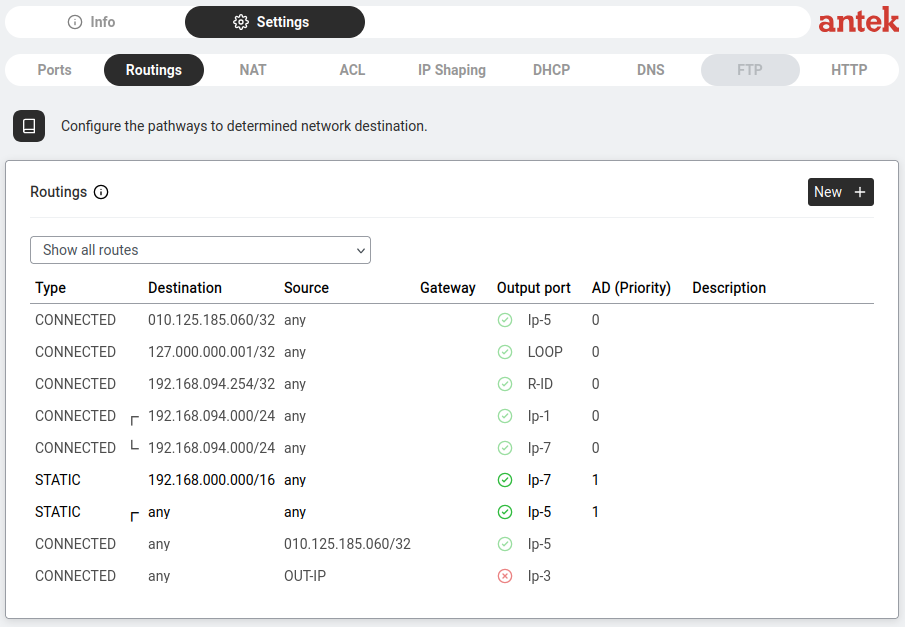
A dropdown at the top lets you filter: Show all routes or filter by type.
Columns:
| Column | Example | Meaning |
|---|---|---|
| Type | CONNECTED | CONNECTED = auto-defined by the port. STATIC = manually defined. |
| Destination | 127.000.000.001/32, 192.168.001.000/24, any | Where the traffic is going. |
| Source | any | Where the traffic comes from. Almost all rules use any — the rule applies regardless of source. A specific source lets you route different LANs to different exits, only needed for multi-WAN setups. |
| Gateway | OUT-IP, 192.168.1.254 | The IP of the next router that should receive the packet — usually your upstream provider's gateway. The pseudo-value OUT-IP means "whichever IP the outbound port currently has" — used for routes whose gateway is dynamic (PPPoE/DHCP-assigned). |
| Output port | LOOP, R-ID, Ip-1, Ip-5, Ip-3 | Which port to send traffic through. = port is up,  = port is down. = port is down. |
| AD (Priority) | 0, 1, 180 | Administrative distance — see callout below. |
| Description | (blank) | Optional label. |
Rewrites IP addresses (and optionally ports) on packets as they cross between the inside and outside of your network. The most common use is letting many internal devices share one public IP — but the same machinery can also redirect a specific port to an internal server (port forwarding) or send DNS queries through Abilis. For the three kinds of NAT and how the INSIDE/OUTSIDE zones map to them, see The three kinds of NAT.
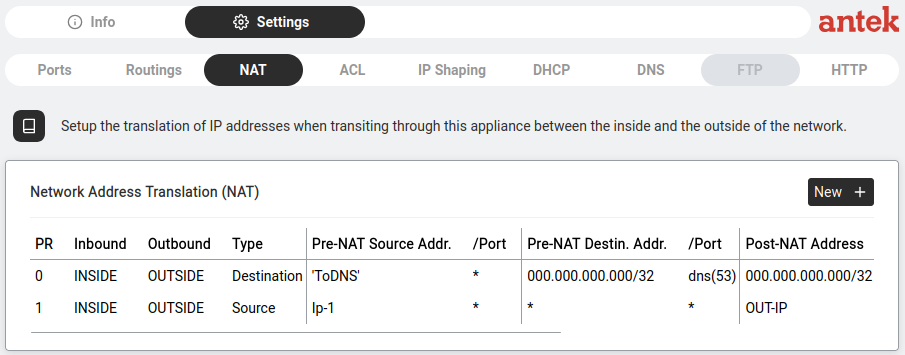
The columns:
| Column | Example | What It Means |
|---|---|---|
| PR | 0, 1, 2 … | Priority. The order in which rules are evaluated — PR 0 is checked first, PR 1 next, etc. Lower number = higher priority. |
| Inbound | Ip-1 | The port the packet arrived on (which interface it came in through). |
| Outbound | Ip-1 | The port the packet will leave on after translation. |
| Type | Source / Destination | Source NAT rewrites who sent the packet (typical for "share one internet IP"). Destination NAT rewrites who it's going to (typical for port forwarding to an internal server). |
| Pre-NAT Source Addr. / /Port | 192.168.1.0/24 / # | Match traffic from these source IPs (and ports). # = any. |
| Pre-NAT Destin. Addr. / /Port | 8.8.8.8 / 53 | Match traffic to these destination IPs (and ports). # = any. |
| Post-NAT Address / /Port | OUT-IP / # | Rewrite to this address (and port). # = leave the port unchanged. OUT-IP = use whatever IP the outbound port currently has (auto-selected per packet). |
port/protocol notation. 53/UDP means port 53 carried
over UDP — that's how DNS lookups travel. Web traffic uses 80/TCP
(HTTP) and 443/TCP (HTTPS).
In the screenshot, two default rules exist:
ToDNS list, ensuring all DNS traffic flows through Abilis.Checks every piece of traffic passing through the Abilis and decides whether to allow it or block it, working down a numbered list of rules from top to bottom and acting on the first one that matches. The most common use is blocking known-bad addresses with the built-in blocklist — but you can also write your own rules to allow or block traffic by who sent it, where it is going or which service it uses. Traffic that matches no rule is allowed through — see How firewall rules match for why that differs from deny-by-default firewalls and how to get strict whitelist behaviour.
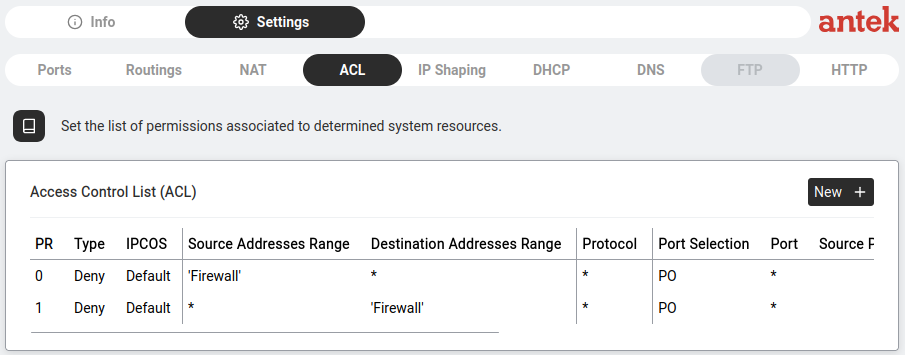
The columns:
| Column | Example | What It Means |
|---|---|---|
| PR | 0, 1, 2 … | Priority. The order in which rules are evaluated — PR 0 is checked first. Lower number = higher priority. |
| Type | Permit / Deny | Permit allows matching traffic. Deny drops it. |
| IPCOS | DFT, HIGH, NORMAL, LOW | IP Class of Service — an optional Quality-of-Service tag that Abilis stamps on matching packets. Downstream routers (and the Abilis's own VLAN/802.1q layer) use it to prioritise traffic. Use HIGH for voice, DFT (default) for everything else. |
| Source Addresses Range | any, 192.168.1.0:192.168.1.255, 'Firewall' | Match traffic from these addresses. Single IP, range (10.0.0.1:10.0.0.50), a named list in quotes ('Firewall') or * / any. |
| Destination Addresses Range | any | Same format, but for the destination side. |
| Protocol | TCP, UDP, * | Which IP protocol the rule matches. * = any. |
| Port Selection | PO, SPO,DPO | How to interpret the port columns. PO matches if either the source or the destination port matches; SPO,DPO matches the source and destination ports separately (the rule editor then shows a Source Ports and a Destination Ports field). (Only meaningful for TCP/UDP rules.) |
| Port | 23, 23:161, 'webports', * | Port to match: a single number, a mnemonic (telnet, snmp), an interval (23:161), a named list in quotes or * for any. |
| Source Port | (usually blank) | Optional source-port match, used when Port Selection is SPO,DPO. |
| Description | (blank) | Optional label. |
The two default rules in the screenshot:
'Firewall' list (any destination, any protocol, Port Selection = PO).'Firewall' list (any source, any protocol, Port Selection = PO).Together these block any traffic to or from an IP address in the 'Firewall'
list (a built-in blacklist managed in Tools → Lists).
These two entries are read-only — they cannot be deleted, moved or edited —
though they can be switched off as a pair (the ACL-FIREWALL setting,
YES by default). Click New + to add your own rules after them
(from PR 2 up).
Keeps an eye on the few devices using the most bandwidth and slows them down so one heavy user can't make the internet feel slow for everyone else. The typical case is a single computer running a large, steady download — the settings let you target that kind of sustained transfer while leaving normal web browsing alone. For the model behind these settings — classification, marking (IPCOS) and shaping vs policing — see How QoS works.
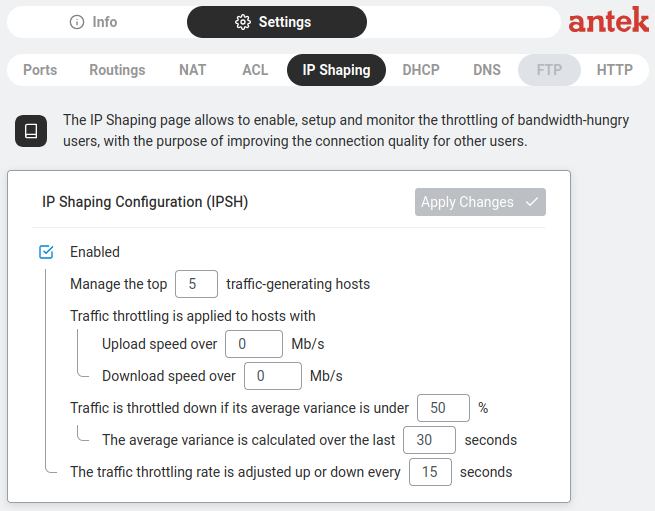
The IP Shaping Configuration (IPSH) panel with Apply Changes button:
| Setting | Default | What It Controls |
|---|---|---|
| Enabled | ✓ | Master switch for IP Shaping. |
| Manage the top __ traffic-generating hosts | 5 | How many of the heaviest users are tracked for potential throttling. |
| Upload speed over __ Mb/s | 0 | Only throttle hosts uploading above this threshold (0 = any). |
| Download speed over __ Mb/s | 0 | Only throttle hosts downloading above this threshold (0 = any). |
| Traffic is throttled down if its average variance is under __ % | 50 | Only throttle if the traffic pattern is steady (low variance = consistent download, not bursty web browsing). |
| The average variance is calculated over the last __ seconds | 30 | Time window for measuring traffic variance. |
| The traffic throttling rate is adjusted up or down every __ seconds | 15 | How often the throttle is recalculated. |
Gives devices on your network their IP address automatically, so nobody has to set one by hand. The Abilis can either hand out the addresses itself (DHCP Server mode) or pass the requests along to another device that does (Relay mode); it can also reserve a fixed address for specific devices such as printers or cameras.
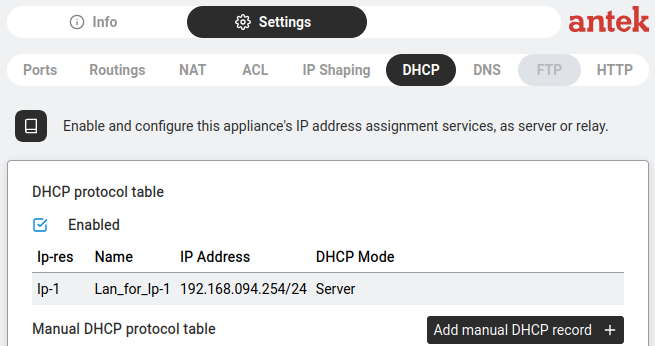
The main page shows two tables:
Click on a DHCP entry (e.g. Ip-1 | Lan_for_Ip-1) to open the detail panel with three sub-tabs:
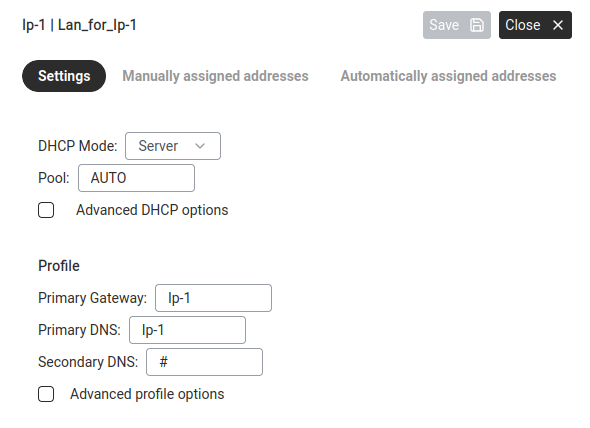
| Field | Default | What It Controls |
|---|---|---|
| DHCP Mode | Server | Dropdown: Server (Abilis hands out IPs directly) or Relay (forwards requests to another server). |
| Pool | AUTO | The range of IP addresses available for automatic assignment. |
| Advanced DHCP options | ☐ | Tick to reveal additional settings. |
The Profile section below defines what settings DHCP clients receive:
| Field | Default | What Clients Get |
|---|---|---|
| Primary Gateway | Ip-1 | The router IP that DHCP clients should use to reach the internet. Use the Abilis's own port (e.g. Ip-1) if Abilis is also the gateway or your upstream router's IP otherwise. |
| Primary DNS | Ip-1 | DNS server for resolving website names. |
| Secondary DNS | # | Backup DNS server (# = none). |
| Advanced profile options | ☐ | Tick for more settings (lease time, domain name, etc.). |
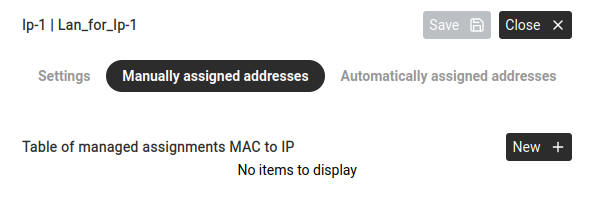
Reservations that tie a specific IP to a specific MAC address — click New + to add one. Use this for printers, cameras, servers, anything that needs a fixed address that never changes.
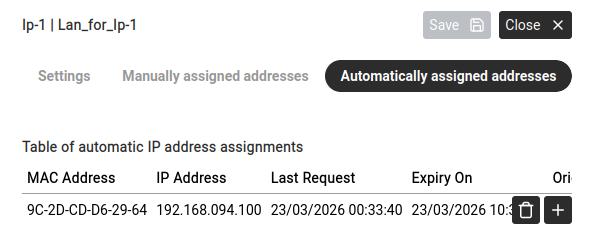
Devices that received an IP from the pool. This is a live view, not a configuration table — entries appear and disappear as devices join, renew and leave. Columns:
| Column | Example | Meaning |
|---|---|---|
| MAC Address | 9C-2D-CD-D6-29-64 | Unique hardware identifier of the device. |
| IP Address | 192.168.001.100 | The IP address assigned to it. |
| Last Request | 19/01/2012 17:32:45 | When the device last requested/renewed its address. |
| Expiry On | 20/01/2012 03:... | When the assignment expires (the device must renew before this time). |
Buttons on each row:  delete the assignment, + convert it to a manual (permanent) reservation.
Click Save after any changes or Close to return to the DHCP main page.
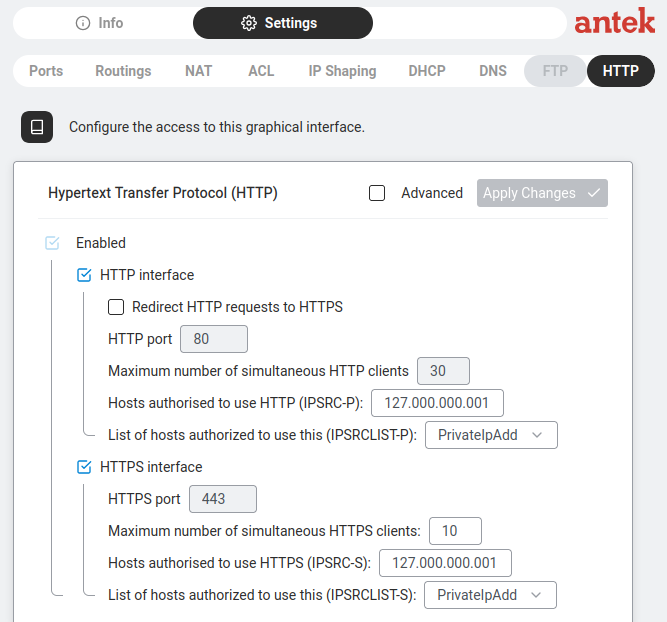
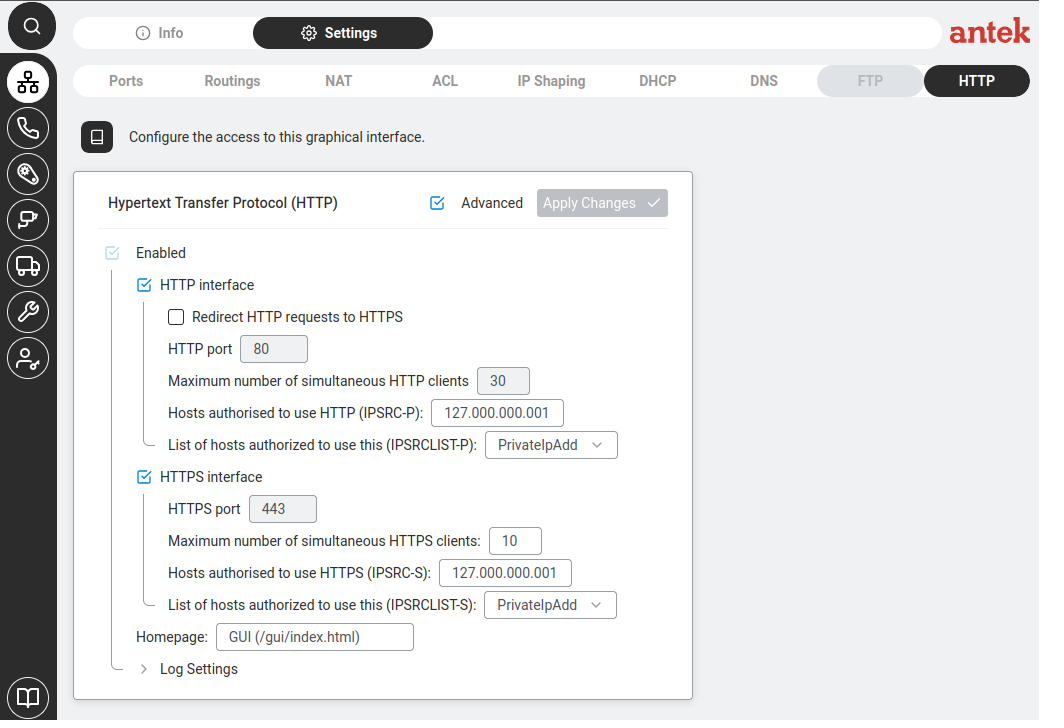
Controls the built-in web server — the same one serving the screens you are using right now to manage the Abilis. Here you set which port it listens on, whether connections must be encrypted (HTTPS) and how long you can stay logged in before being signed out for inactivity.